

- Ana Sayfa
- Özellikler
- Bildirim alanı
Aradan çekilir. İndirmeye devam eder.
VDM can start with your computer and wait in the notification area, its window closed and its downloads running. A download's progress window can go there too, with one click.
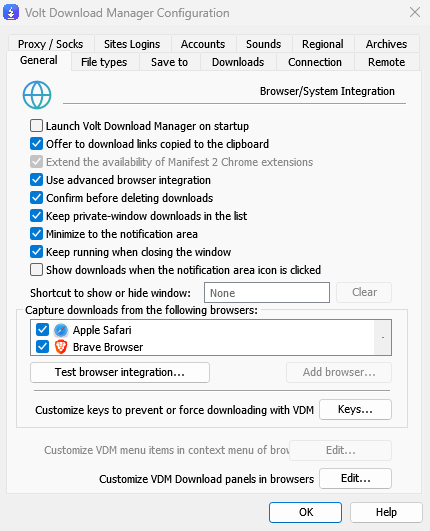
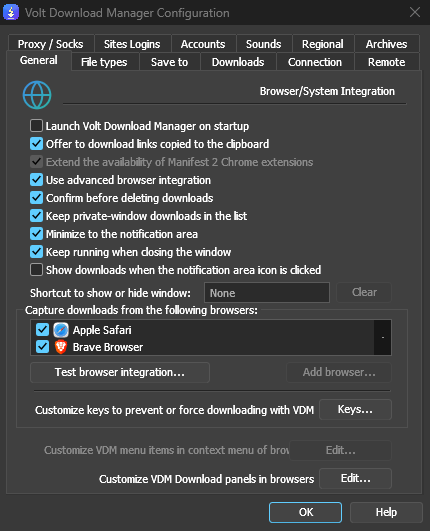
Bilgisayarla birlikte, öne çıkmadan başlar
Tick Launch Volt Download Manager on startup in Options → General and VDM starts when you sign in, hidden, its icon in the notification area. Its downloads, queues, the Scheduler and downloads from the browser all run from there. Click the icon, or start VDM again, and the window opens as usual.
The option is off until you tick it. On Linux and macOS VDM starts with your session the same way. A portable copy can't start with Windows, since that needs the registry, so the option is greyed there.
Tek tıklamayla bir indirmenin penceresini gizler
Bir indirmenin ilerleme penceresinde Bildirim alanına gizle düğmesi bulunur: köşeye doğru bir okla kısa bir çizgi. Windows'ta başlık çubuğunda, Simge Durumuna Küçült'ün solunda ve başlık çubuğu menüsünde (Alt+Ara Çubuğu) yer alır. Linux ve macOS'ta sekme sırasının sonunda bulunur. İndirme devam eder.
Tekrar görmek için tepsi simgesine sağ tıklayın ve çalışan her indirmenin listelendiği Devam eden indirmeler altında onu seçin. Listedeki indirmeye çift tıklamak da penceresini geri getirir.
Simge durumuna küçültmek de pencereleri tepsiye gönderir
With Minimize to the notification area on in Options → General (it is on by default), Minimize hides the main window, and a progress window, in the notification area instead of leaving them on the taskbar. Closing the main window does the same: VDM keeps running until you choose Tasks → Exit or Exit in the tray menu.
Tepsi menüsünde ayrıca Yeni indirme ekle, Toplu indirme ekle, Panodan toplu indirme ekle, Hız Sınırlayıcı, Zamanlayıcı, ana indirme kuyruğu ve Seçenekler bulunur.
Oyununuzun veya sunumunuzun önüne asla geçmez
While a full-screen game, a film or a presentation is on, or the screen is locked, Download complete and VDM's other windows that come up by themselves wait. The download finishes as usual; its window shows when you're back, and several show one after the other, in the order they came. The tray icon's tip says how many wait. A link you click in the browser still opens at once. To have them show at once anyway, untick Don't show pop-ups while a full-screen app or presentation is running in Options → Downloads.
Beklerken hafif
Hidden in the notification area, VDM hands the memory it isn't using back to the system. Task Manager's Memory for VDM drops from about 50 MB to under 10 MB there, and VDM gives memory back again every 10 minutes while it stays hidden. On Linux it does the same with its free memory.
Tepsinin olmadığı yerlerde
All of this needs a notification area that shows VDM's icon. Windows and macOS have one, and so do most Linux desktops (KDE, GNOME with its AppIndicator extension, waybar's tray). On a desktop without one, VDM starts minimized instead, closing the window quits VDM, and Minimize to the notification area is greyed. In a Wayland session the main window stays minimized in the dock, because Wayland can't hide a window.
Ücretsiz, açık kaynak, reklamsız, deneme sürümü yok.
Download Volt Download Manager