

- Inicio
- Características
- Área de notificación
Apartado. Descargando aún.
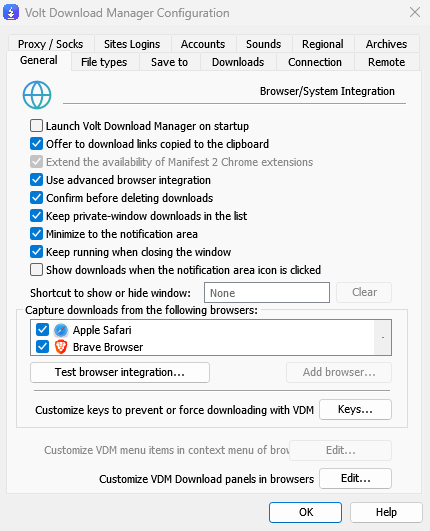
VDM can start with your computer and wait in the notification area, its window closed and its downloads running. A download's progress window can go there too, with one click.
Se inicia con el ordenador, sin estorbar
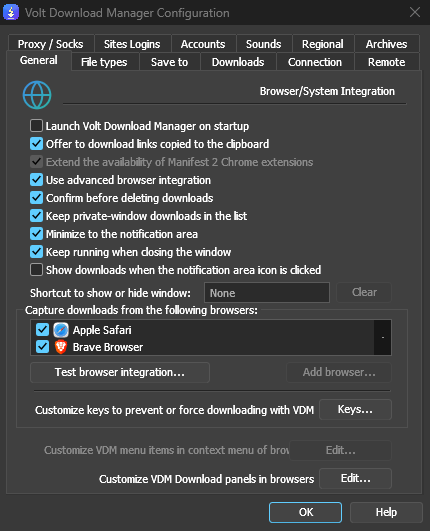
Tick Launch Volt Download Manager on startup in Options → General and VDM starts when you sign in, hidden, its icon in the notification area. Its downloads, queues, the Scheduler and downloads from the browser all run from there. Click the icon, or start VDM again, and the window opens as usual.
The option is off until you tick it. On Linux and macOS VDM starts with your session the same way. A portable copy can't start with Windows, since that needs the registry, so the option is greyed there.
Un clic oculta la ventana de una descarga
La ventana de progreso de una descarga tiene un botón Ocultar en el área de notificación: un guion corto con una flecha hacia abajo en la esquina. En Windows, se encuentra en la barra de título, a la izquierda de Minimizar, y en el menú de la barra de título (Alt+Espacio). En Linux y macOS, está al final de la fila de pestañas. La descarga continúa.
Para volver a verla, haz clic derecho en el icono de la bandeja y selecciónala en Descargas en curso, que lista todas las descargas en ejecución. Hacer doble clic en la descarga de la lista también hace que su ventana vuelva a aparecer.
Minimizar también envía las ventanas a la bandeja
With Minimize to the notification area on in Options → General (it is on by default), Minimize hides the main window, and a progress window, in the notification area instead of leaving them on the taskbar. Closing the main window does the same: VDM keeps running until you choose Tasks → Exit or Exit in the tray menu.
El menú de la bandeja también tiene Añadir nueva descarga, Añadir descarga por lotes, Añadir descarga por lotes desde el portapapeles, el Limitador de velocidad, el Programador, la cola de descargas principal y Opciones.
Nunca sobre tu juego o tus diapositivas
While a full-screen game, a film or a presentation is on, or the screen is locked, Download complete and VDM's other windows that come up by themselves wait. The download finishes as usual; its window shows when you're back, and several show one after the other, in the order they came. The tray icon's tip says how many wait. A link you click in the browser still opens at once. To have them show at once anyway, untick Don't show pop-ups while a full-screen app or presentation is running in Options → Downloads.
Ligero mientras espera
Hidden in the notification area, VDM hands the memory it isn't using back to the system. Task Manager's Memory for VDM drops from about 50 MB to under 10 MB there, and VDM gives memory back again every 10 minutes while it stays hidden. On Linux it does the same with its free memory.
Donde no hay bandeja
All of this needs a notification area that shows VDM's icon. Windows and macOS have one, and so do most Linux desktops (KDE, GNOME with its AppIndicator extension, waybar's tray). On a desktop without one, VDM starts minimized instead, closing the window quits VDM, and Minimize to the notification area is greyed. In a Wayland session the main window stays minimized in the dock, because Wayland can't hide a window.
Gratis, código abierto, sin anuncios, sin prueba.
Download Volt Download Manager