

- Strona główna
- Funkcje
- Obszar powiadomień
Nie przeszkadza. Nadal pobiera.
VDM can start with your computer and wait in the notification area, its window closed and its downloads running. A download's progress window can go there too, with one click.
Uruchamia się z komputerem, nie wysuwając się na pierwszy plan
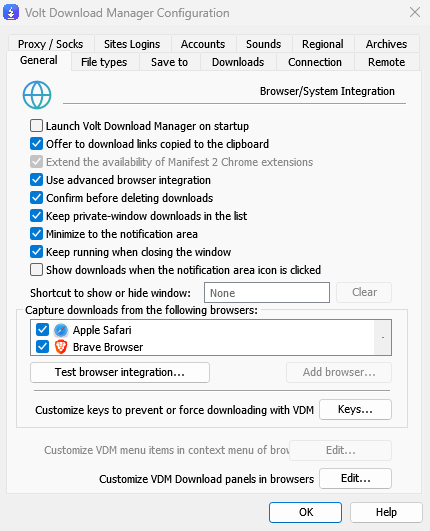
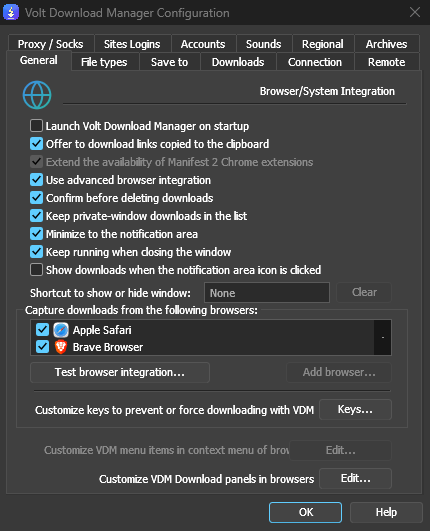
Tick Launch Volt Download Manager on startup in Options → General and VDM starts when you sign in, hidden, its icon in the notification area. Its downloads, queues, the Scheduler and downloads from the browser all run from there. Click the icon, or start VDM again, and the window opens as usual.
The option is off until you tick it. On Linux and macOS VDM starts with your session the same way. A portable copy can't start with Windows, since that needs the registry, so the option is greyed there.
Jedno kliknięcie ukrywa okno pobierania
Okno postępu pobierania ma przycisk Ukryj w obszarze powiadomień: krótka kreska ze strzałką w dół do rogu. W systemie Windows znajduje się on na pasku tytułu, na lewo od przycisku Minimalizuj, oraz w menu paska tytułu (Alt+Spacja). W systemach Linux i macOS znajduje się na końcu rzędu zakładek. Pobieranie jest kontynuowane.
Aby zobaczyć je ponownie, kliknij prawym przyciskiem myszy ikonę w zasobniku i wybierz je z listy Pobieranie w toku, która zawiera wszystkie trwające pobierania. Dwukrotne kliknięcie pobierania na liście również przywraca jego okno.
Minimalizowanie również wysyła okna do zasobnika
With Minimize to the notification area on in Options → General (it is on by default), Minimize hides the main window, and a progress window, in the notification area instead of leaving them on the taskbar. Closing the main window does the same: VDM keeps running until you choose Tasks → Exit or Exit in the tray menu.
Menu w zasobniku systemowym zawiera również opcje Dodaj nowe pobieranie, Dodaj pobieranie wsadowe, Dodaj pobieranie wsadowe ze schowka, Ogranicznik prędkości, Harmonogram, główną kolejkę pobierania oraz Opcje.
Nigdy nad grą lub prezentacją
While a full-screen game, a film or a presentation is on, or the screen is locked, Download complete and VDM's other windows that come up by themselves wait. The download finishes as usual; its window shows when you're back, and several show one after the other, in the order they came. The tray icon's tip says how many wait. A link you click in the browser still opens at once. To have them show at once anyway, untick Don't show pop-ups while a full-screen app or presentation is running in Options → Downloads.
Lekki podczas oczekiwania
Hidden in the notification area, VDM hands the memory it isn't using back to the system. Task Manager's Memory for VDM drops from about 50 MB to under 10 MB there, and VDM gives memory back again every 10 minutes while it stays hidden. On Linux it does the same with its free memory.
Gdzie nie ma zasobnika
All of this needs a notification area that shows VDM's icon. Windows and macOS have one, and so do most Linux desktops (KDE, GNOME with its AppIndicator extension, waybar's tray). On a desktop without one, VDM starts minimized instead, closing the window quits VDM, and Minimize to the notification area is greyed. In a Wayland session the main window stays minimized in the dock, because Wayland can't hide a window.
Darmowy, open source, bez reklam, bez wersji próbnej.
Download Volt Download Manager