

Dimulai bersama komputer, tanpa terlihat
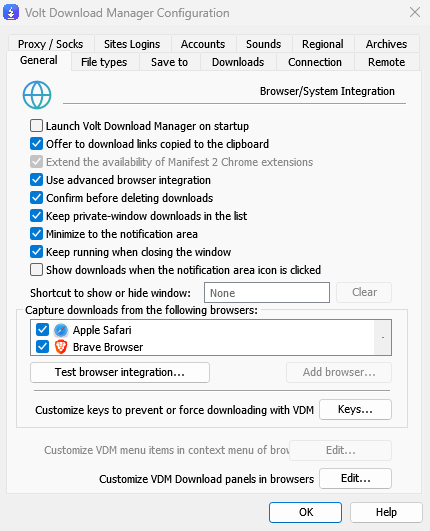
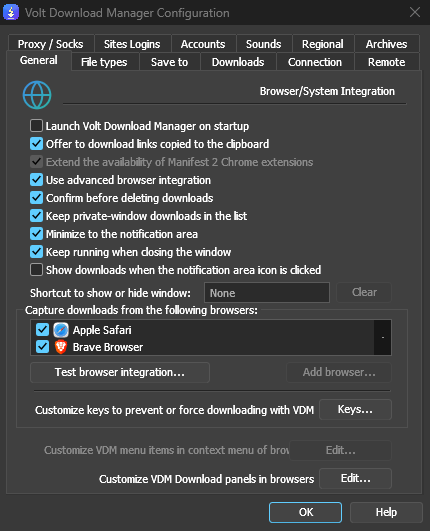
Tick Launch Volt Download Manager on startup in Options → General and VDM starts when you sign in, hidden, its icon in the notification area. Its downloads, queues, the Scheduler and downloads from the browser all run from there. Click the icon, or start VDM again, and the window opens as usual.
The option is off until you tick it. On Linux and macOS VDM starts with your session the same way. A portable copy can't start with Windows, since that needs the registry, so the option is greyed there.
Satu klik menyembunyikan jendela unduhan
Jendela progres unduhan memiliki tombol Sembunyikan ke area notifikasi: tanda hubung pendek dengan panah ke bawah menuju sudut. Di Windows, tombol ini berada di bilah judul, di sebelah kiri Minimalkan, dan di menu bilah judul (Alt+Spasi). Di Linux dan macOS, tombol ini berada di ujung baris tab. Unduhan tetap berjalan.
Untuk melihatnya lagi, klik kanan ikon baki dan pilih di bawah Unduhan sedang berlangsung, yang mencantumkan setiap unduhan yang berjalan. Mengklik dua kali unduhan dalam daftar juga akan mengembalikan jendelanya.
Minimalkan juga mengirim jendela ke baki
With Minimize to the notification area on in Options → General (it is on by default), Minimize hides the main window, and a progress window, in the notification area instead of leaving them on the taskbar. Closing the main window does the same: VDM keeps running until you choose Tasks → Exit or Exit in the tray menu.
Menu baki juga memiliki Tambahkan unduhan baru, Tambahkan unduhan batch, Tambahkan unduhan batch dari papan klip, Pembatas Kecepatan, Penjadwal, antrean unduhan utama, dan Opsi.
Tidak akan menutupi game atau slide Anda
While a full-screen game, a film or a presentation is on, or the screen is locked, Download complete and VDM's other windows that come up by themselves wait. The download finishes as usual; its window shows when you're back, and several show one after the other, in the order they came. The tray icon's tip says how many wait. A link you click in the browser still opens at once. To have them show at once anyway, untick Don't show pop-ups while a full-screen app or presentation is running in Options → Downloads.
Ringan saat menunggu
Hidden in the notification area, VDM hands the memory it isn't using back to the system. Task Manager's Memory for VDM drops from about 50 MB to under 10 MB there, and VDM gives memory back again every 10 minutes while it stays hidden. On Linux it does the same with its free memory.
Jika tidak ada baki
All of this needs a notification area that shows VDM's icon. Windows and macOS have one, and so do most Linux desktops (KDE, GNOME with its AppIndicator extension, waybar's tray). On a desktop without one, VDM starts minimized instead, closing the window quits VDM, and Minimize to the notification area is greyed. In a Wayland session the main window stays minimized in the dock, because Wayland can't hide a window.
Gratis, sumber terbuka, tanpa iklan, tanpa masa uji coba.
Download Volt Download Manager