

- Startseite
- Funktionen
- Benachrichtigungsbereich
Unauffällig. Lädt trotzdem herunter.
VDM can start with your computer and wait in the notification area, its window closed and its downloads running. A download's progress window can go there too, with one click.
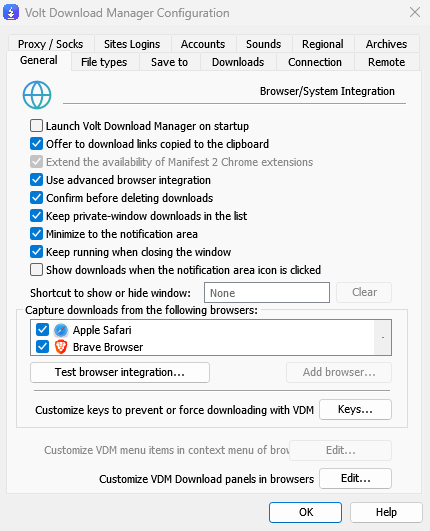
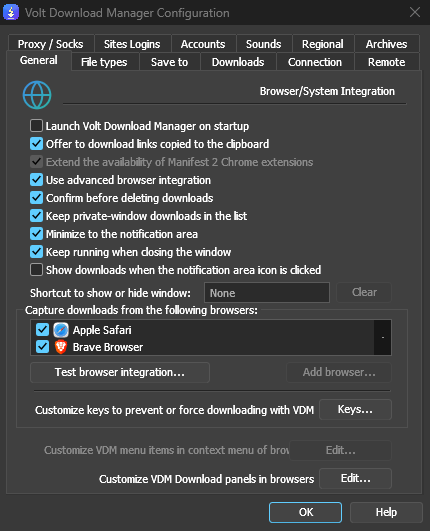
Startet mit dem Computer, ohne sich in den Vordergrund zu drängen
Tick Launch Volt Download Manager on startup in Options → General and VDM starts when you sign in, hidden, its icon in the notification area. Its downloads, queues, the Scheduler and downloads from the browser all run from there. Click the icon, or start VDM again, and the window opens as usual.
The option is off until you tick it. On Linux and macOS VDM starts with your session the same way. A portable copy can't start with Windows, since that needs the registry, so the option is greyed there.
Ein Klick blendet das Download-Fenster aus
Das Fortschrittsfenster eines Downloads hat eine Schaltfläche Im Infobereich ausblenden: ein kurzer Strich mit einem Pfeil nach unten zur Ecke. Unter Windows befindet sie sich in der Titelleiste, links neben Minimieren, und im Menü der Titelleiste (Alt+Leertaste). Unter Linux und macOS ist sie am Ende der Registerkartenreihe. Der Download wird fortgesetzt.
Um es wieder anzuzeigen, klicken Sie mit der rechten Maustaste auf das Tray-Symbol und wählen Sie es unter Aktive Downloads aus, wo jeder laufende Download aufgelistet ist. Ein Doppelklick auf den Download in der Liste bringt dessen Fenster ebenfalls zurück.
Minimieren sendet Fenster ebenfalls in den Infobereich
With Minimize to the notification area on in Options → General (it is on by default), Minimize hides the main window, and a progress window, in the notification area instead of leaving them on the taskbar. Closing the main window does the same: VDM keeps running until you choose Tasks → Exit or Exit in the tray menu.
Das Tray-Menü enthält auch Neuen Download hinzufügen, Batch-Download hinzufügen, Stapel-Download aus der Zwischenablage hinzufügen, den Geschwindigkeitsbegrenzer, den Zeitplaner, die Haupt-Download-Warteschlange und die Optionen.
Nie über Ihrem Spiel oder Ihren Folien
While a full-screen game, a film or a presentation is on, or the screen is locked, Download complete and VDM's other windows that come up by themselves wait. The download finishes as usual; its window shows when you're back, and several show one after the other, in the order they came. The tray icon's tip says how many wait. A link you click in the browser still opens at once. To have them show at once anyway, untick Don't show pop-ups while a full-screen app or presentation is running in Options → Downloads.
Leicht, während es wartet
Hidden in the notification area, VDM hands the memory it isn't using back to the system. Task Manager's Memory for VDM drops from about 50 MB to under 10 MB there, and VDM gives memory back again every 10 minutes while it stays hidden. On Linux it does the same with its free memory.
Wo es keinen Infobereich gibt
All of this needs a notification area that shows VDM's icon. Windows and macOS have one, and so do most Linux desktops (KDE, GNOME with its AppIndicator extension, waybar's tray). On a desktop without one, VDM starts minimized instead, closing the window quits VDM, and Minimize to the notification area is greyed. In a Wayland session the main window stays minimized in the dock, because Wayland can't hide a window.
Kostenlos, Open Source, keine Werbung, keine Testversion.
Download Volt Download Manager