

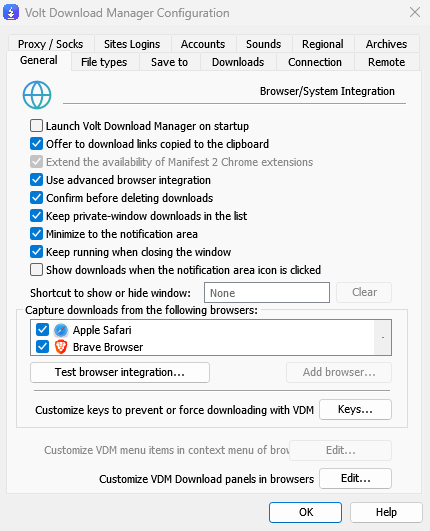
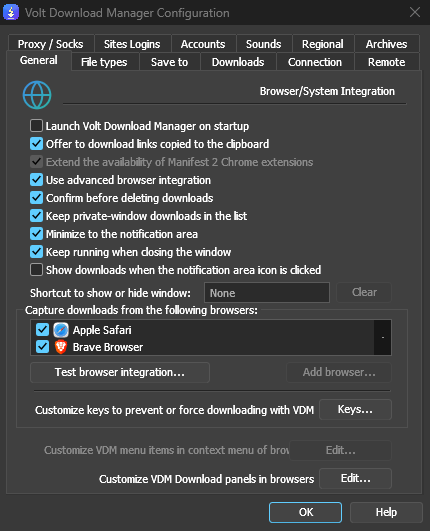
방해 없이 컴퓨터 시작 시 실행
Tick Launch Volt Download Manager on startup in Options → General and VDM starts when you sign in, hidden, its icon in the notification area. Its downloads, queues, the Scheduler and downloads from the browser all run from there. Click the icon, or start VDM again, and the window opens as usual.
The option is off until you tick it. On Linux and macOS VDM starts with your session the same way. A portable copy can't start with Windows, since that needs the registry, so the option is greyed there.
한 번의 클릭으로 다운로드 창 숨기기
다운로드 진행 창에는 알림 영역으로 숨기기 버튼이 있습니다. 이 버튼은 짧은 대시와 모서리를 향하는 아래쪽 화살표 모양입니다. Windows에서는 제목 표시줄의 최소화 버튼 왼쪽에 있으며, 제목 표시줄 메뉴(Alt+Space)에도 있습니다. Linux 및 macOS에서는 탭 줄 끝에 있습니다. 다운로드는 계속 진행됩니다.
다시 보려면 트레이 아이콘을 마우스 오른쪽 버튼으로 클릭하고 실행 중인 모든 다운로드를 나열하는 진행 중인 다운로드 아래에서 해당 다운로드를 선택하세요. 목록에서 다운로드를 두 번 클릭해도 창이 다시 나타납니다.
최소화도 창을 트레이로 보냅니다
With Minimize to the notification area on in Options → General (it is on by default), Minimize hides the main window, and a progress window, in the notification area instead of leaving them on the taskbar. Closing the main window does the same: VDM keeps running until you choose Tasks → Exit or Exit in the tray menu.
트레이 메뉴에는 새 다운로드 추가, 일괄 다운로드 추가, 클립보드에서 일괄 다운로드 추가, 속도 제한, 예약 관리자, 주 다운로드 대기열 및 옵션도 있습니다.
게임이나 슬라이드 위에 뜨지 않음
While a full-screen game, a film or a presentation is on, or the screen is locked, Download complete and VDM's other windows that come up by themselves wait. The download finishes as usual; its window shows when you're back, and several show one after the other, in the order they came. The tray icon's tip says how many wait. A link you click in the browser still opens at once. To have them show at once anyway, untick Don't show pop-ups while a full-screen app or presentation is running in Options → Downloads.
대기 중에는 가볍게
Hidden in the notification area, VDM hands the memory it isn't using back to the system. Task Manager's Memory for VDM drops from about 50 MB to under 10 MB there, and VDM gives memory back again every 10 minutes while it stays hidden. On Linux it does the same with its free memory.
트레이가 없는 경우
All of this needs a notification area that shows VDM's icon. Windows and macOS have one, and so do most Linux desktops (KDE, GNOME with its AppIndicator extension, waybar's tray). On a desktop without one, VDM starts minimized instead, closing the window quits VDM, and Minimize to the notification area is greyed. In a Wayland session the main window stays minimized in the dock, because Wayland can't hide a window.
무료, 오픈 소스, 광고 없음, 평가판 없음.
Download Volt Download Manager