

- Accueil
- Fonctionnalités
- Zone de notification
Discret. Mais toujours en action.
VDM can start with your computer and wait in the notification area, its window closed and its downloads running. A download's progress window can go there too, with one click.
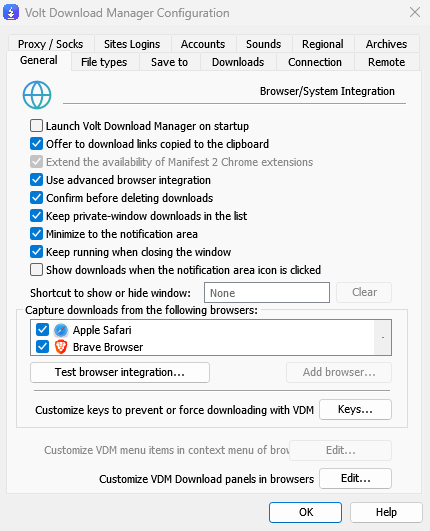
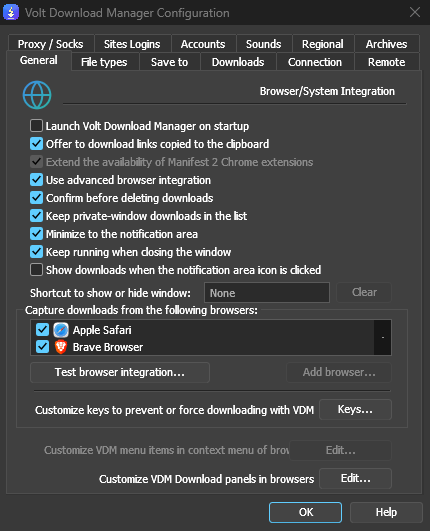
Démarrer avec l’ordinateur, sans gêner
Tick Launch Volt Download Manager on startup in Options → General and VDM starts when you sign in, hidden, its icon in the notification area. Its downloads, queues, the Scheduler and downloads from the browser all run from there. Click the icon, or start VDM again, and the window opens as usual.
The option is off until you tick it. On Linux and macOS VDM starts with your session the same way. A portable copy can't start with Windows, since that needs the registry, so the option is greyed there.
Un clic masque la fenêtre d’un téléchargement
La fenêtre de progression d’un téléchargement a un bouton Masquer dans la zone de notification : un petit tiret avec une flèche vers le coin inférieur. Sur Windows, il se trouve dans la barre de titre, à gauche de Réduire, et dans le menu de la barre de titre (Alt+Espace). Sur Linux et macOS, il est à la fin de la rangée d’onglets. Le téléchargement se poursuit.
Pour la revoir, faites un clic droit sur l’icône de la zone de notification et choisissez-la sous Téléchargements en cours, qui liste tous les téléchargements en cours. Un double-clic sur le téléchargement dans la liste ramène également sa fenêtre.
Réduire envoie aussi les fenêtres dans la zone de notification
With Minimize to the notification area on in Options → General (it is on by default), Minimize hides the main window, and a progress window, in the notification area instead of leaving them on the taskbar. Closing the main window does the same: VDM keeps running until you choose Tasks → Exit or Exit in the tray menu.
Le menu de la zone de notification contient aussi Ajouter un nouveau téléchargement, Ajouter un téléchargement par lot, Ajouter un téléchargement par lot depuis le presse-papiers, le Limiteur de vitesse, le Planificateur, la file d’attente principale des téléchargements et les Options.
Jamais par-dessus votre jeu ou vos diapositives
While a full-screen game, a film or a presentation is on, or the screen is locked, Download complete and VDM's other windows that come up by themselves wait. The download finishes as usual; its window shows when you're back, and several show one after the other, in the order they came. The tray icon's tip says how many wait. A link you click in the browser still opens at once. To have them show at once anyway, untick Don't show pop-ups while a full-screen app or presentation is running in Options → Downloads.
Léger en attente
Hidden in the notification area, VDM hands the memory it isn't using back to the system. Task Manager's Memory for VDM drops from about 50 MB to under 10 MB there, and VDM gives memory back again every 10 minutes while it stays hidden. On Linux it does the same with its free memory.
Là où il n’y a pas de zone de notification
All of this needs a notification area that shows VDM's icon. Windows and macOS have one, and so do most Linux desktops (KDE, GNOME with its AppIndicator extension, waybar's tray). On a desktop without one, VDM starts minimized instead, closing the window quits VDM, and Minimize to the notification area is greyed. In a Wayland session the main window stays minimized in the dock, because Wayland can't hide a window.
Gratuit, open source, sans publicité ni période d’essai.
Download Volt Download Manager