

Start met de computer, zonder in de weg te zitten
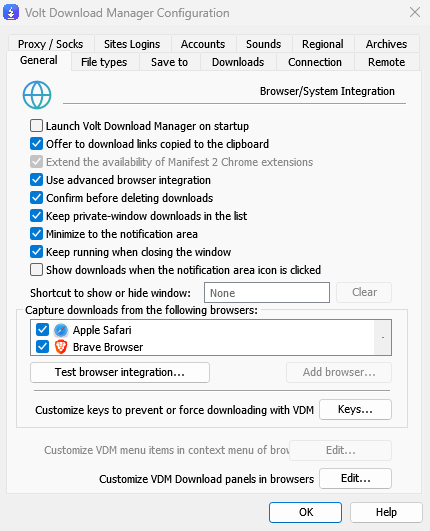
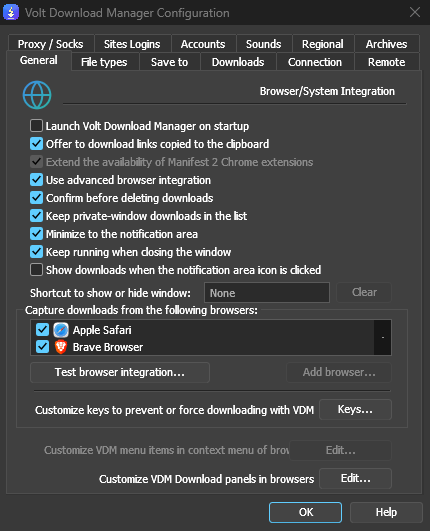
Tick Launch Volt Download Manager on startup in Options → General and VDM starts when you sign in, hidden, its icon in the notification area. Its downloads, queues, the Scheduler and downloads from the browser all run from there. Click the icon, or start VDM again, and the window opens as usual.
The option is off until you tick it. On Linux and macOS VDM starts with your session the same way. A portable copy can't start with Windows, since that needs the registry, so the option is greyed there.
Eén klik verbergt het venster van een download
Het voortgangsvenster van een download heeft een knop Verbergen in het systeemvak: een kort streepje met een pijl naar beneden, naar de hoek. Op Windows bevindt deze zich in de titelbalk, links van Minimaliseren, en in het menu van de titelbalk (Alt+Spatie). Op Linux en macOS bevindt deze zich aan het einde van de tabbladrij. De download gaat door.
Om het opnieuw te zien, klikt u met de rechtermuisknop op het systeemvakpictogram en kiest u het onder Actieve downloads, dat elke actieve download weergeeft. Dubbelklikken op de download in de lijst brengt het venster ook terug.
Minimaliseren stuurt vensters ook naar het systeemvak
With Minimize to the notification area on in Options → General (it is on by default), Minimize hides the main window, and a progress window, in the notification area instead of leaving them on the taskbar. Closing the main window does the same: VDM keeps running until you choose Tasks → Exit or Exit in the tray menu.
Het tray-menu bevat ook Nieuwe download toevoegen, Batchdownload toevoegen, Batchdownload toevoegen vanaf klembord, de Snelheidsbegrenzer, de Planner, de hoofddownloadwachtrij en Opties.
Nooit over uw game of presentatie
While a full-screen game, a film or a presentation is on, or the screen is locked, Download complete and VDM's other windows that come up by themselves wait. The download finishes as usual; its window shows when you're back, and several show one after the other, in the order they came. The tray icon's tip says how many wait. A link you click in the browser still opens at once. To have them show at once anyway, untick Don't show pop-ups while a full-screen app or presentation is running in Options → Downloads.
Lichtgewicht tijdens het wachten
Hidden in the notification area, VDM hands the memory it isn't using back to the system. Task Manager's Memory for VDM drops from about 50 MB to under 10 MB there, and VDM gives memory back again every 10 minutes while it stays hidden. On Linux it does the same with its free memory.
Waar geen systeemvak is
All of this needs a notification area that shows VDM's icon. Windows and macOS have one, and so do most Linux desktops (KDE, GNOME with its AppIndicator extension, waybar's tray). On a desktop without one, VDM starts minimized instead, closing the window quits VDM, and Minimize to the notification area is greyed. In a Wayland session the main window stays minimized in the dock, because Wayland can't hide a window.
Gratis, open source, geen advertenties, geen proefversie.
Download Volt Download Manager