

يبدأ مع الكمبيوتر، دون أن يظهر
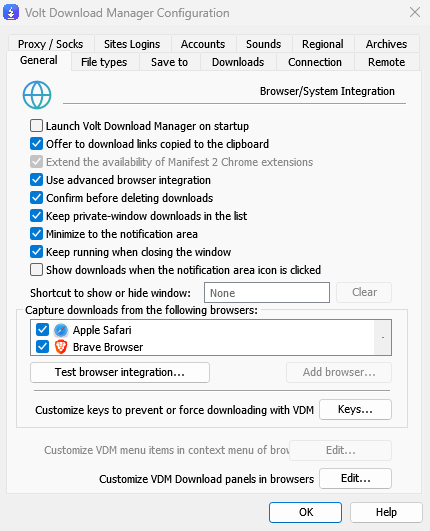
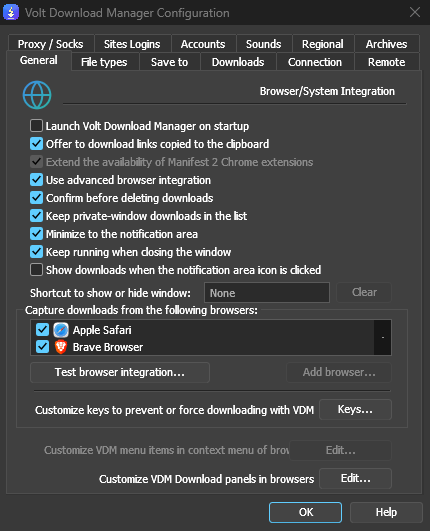
Tick Launch Volt Download Manager on startup in Options → General and VDM starts when you sign in, hidden, its icon in the notification area. Its downloads, queues, the Scheduler and downloads from the browser all run from there. Click the icon, or start VDM again, and the window opens as usual.
The option is off until you tick it. On Linux and macOS VDM starts with your session the same way. A portable copy can't start with Windows, since that needs the registry, so the option is greyed there.
نقرة واحدة تخفي نافذة التنزيل
تحتوي نافذة تقدم التنزيل على زر إخفاء إلى منطقة الإشعارات: شرطة قصيرة مع سهم يشير إلى الأسفل نحو الزاوية. في Windows، يقع في شريط العنوان، يسار تصغير، وفي قائمة شريط العنوان (Alt+Space). في Linux و macOS، يقع في نهاية صف علامات التبويب. يستمر التنزيل.
لإظهاره مرة أخرى، انقر بزر الفأرة الأيمن على أيقونة علبة النظام واختره ضمن التنزيلات الجارية، التي تسرد كل تنزيل قيد التشغيل. النقر المزدوج على التنزيل في القائمة يعيد نافذته أيضا.
التصغير يرسل النوافذ إلى علبة النظام أيضا
With Minimize to the notification area on in Options → General (it is on by default), Minimize hides the main window, and a progress window, in the notification area instead of leaving them on the taskbar. Closing the main window does the same: VDM keeps running until you choose Tasks → Exit or Exit in the tray menu.
تحتوي قائمة علبة النظام أيضا على إضافة تنزيل جديد، وإضافة تنزيل جماعي، وإضافة تنزيل جماعي من الحافظة، ومحدد السرعة، والمجدول، وقائمة التنزيلات الرئيسية، والخيارات.
لا يظهر فوق لعبتك أو عروضك التقديمية
While a full-screen game, a film or a presentation is on, or the screen is locked, Download complete and VDM's other windows that come up by themselves wait. The download finishes as usual; its window shows when you're back, and several show one after the other, in the order they came. The tray icon's tip says how many wait. A link you click in the browser still opens at once. To have them show at once anyway, untick Don't show pop-ups while a full-screen app or presentation is running in Options → Downloads.
خفيف أثناء الانتظار
Hidden in the notification area, VDM hands the memory it isn't using back to the system. Task Manager's Memory for VDM drops from about 50 MB to under 10 MB there, and VDM gives memory back again every 10 minutes while it stays hidden. On Linux it does the same with its free memory.
حيث لا توجد علبة نظام
All of this needs a notification area that shows VDM's icon. Windows and macOS have one, and so do most Linux desktops (KDE, GNOME with its AppIndicator extension, waybar's tray). On a desktop without one, VDM starts minimized instead, closing the window quits VDM, and Minimize to the notification area is greyed. In a Wayland session the main window stays minimized in the dock, because Wayland can't hide a window.
مجاني، مفتوح المصدر، بدون إعلانات، بدون فترة تجريبية.
Download Volt Download Manager